Container Queries
How CSS container queries decouple component responsiveness from the viewport — enabling truly reusable components that adapt their layout based on the size of their nearest containment context rather than the browser window.
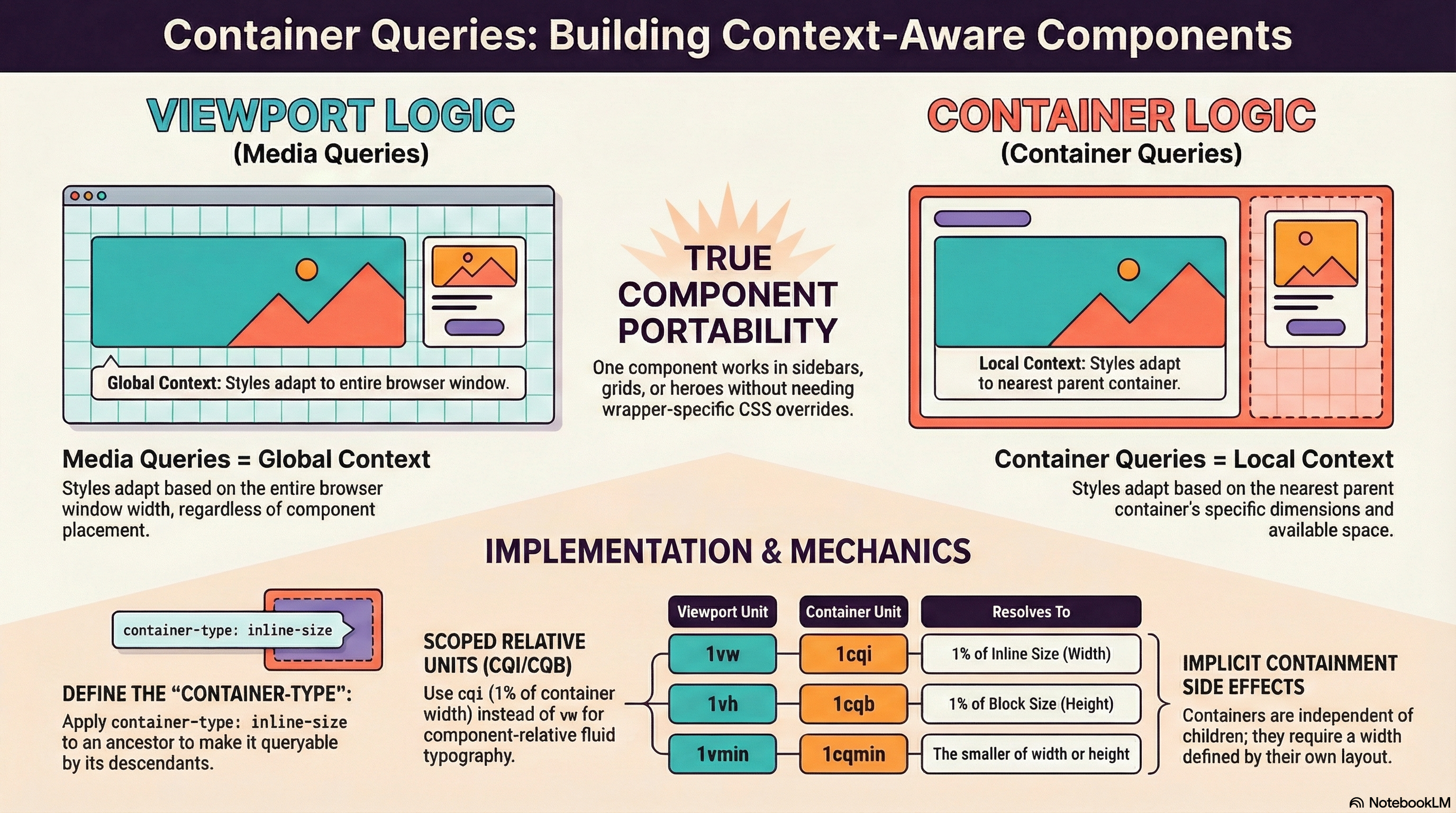
Overview
Media queries have been the foundation of responsive web design since 2012, but they operate on a fundamental assumption: the viewport is the relevant size context. This assumption breaks down the moment a component appears in multiple layout contexts — a card component in a three-column grid behaves differently from the same card in a sidebar, yet both share the same viewport width. The result is that components written with media queries are not truly portable; they encode assumptions about where they will be placed.
Container queries solve this by allowing a component to respond to the dimensions of its nearest containment ancestor rather than the viewport. When you declare an element as a container, its descendants can write @container rules that evaluate against that container's inline size (width, in horizontal writing modes) or both dimensions. The component becomes self-contained: it adapts to whatever space it is given, regardless of where that space appears in the page layout.
This shift has a meaningful architectural consequence. Components designed with container queries are genuinely reusable across different layout contexts — dashboards, sidebars, modals, full-width sections — without needing wrapper-specific overrides or JavaScript-based resize observation. Browser support reached baseline status across Chrome, Firefox, Safari, and Edge as of February 2023, making container size queries production-ready. Style queries remain partially implemented and are covered separately below.
How It Works
Establishing a Container with container-type
To make an element queryable by its descendants, you set container-type on it. This property accepts three values:
inline-size — The element becomes a container for queries against its inline dimension (width in horizontal writing modes). This is the most commonly used value. Under the hood, the browser applies contain: inline-size layout style to the element — meaning its inline size is determined independently of its children, layout changes inside are scoped, and CSS counters are isolated.
size — The element becomes a container for queries against both inline and block dimensions. The browser applies contain: size layout style. Because block-size containment means the element's height does not depend on its children, you must provide an explicit height or the element collapses vertically. This is rarely needed — most responsive decisions are based on width alone.
normal — The default. The element is not a query container for size queries but can still be used as a container for style queries (when supported). No containment is applied.
/* The wrapper becomes a size container — its children can query its width */
.card-wrapper {
  container-type: inline-size;
}

/* Both dimensions are queryable — requires explicit height */
.fixed-panel {
  container-type: size;
  height: 400px;
}
Setting container-type: inline-size implicitly applies layout and inline-size
containment. This means the element establishes a new formatting context and its
inline size is not influenced by its children. If a child attempts to expand the
container (e.g., an unsized image), the container will not grow to accommodate it.
This is the same behavior as contain: inline-size layout style.
Writing @container Rules
Once a container is established, any descendant can write @container rules that evaluate against it. The syntax mirrors media queries:
.card-wrapper {
  container-type: inline-size;
}

.card {
  display: grid;
  grid-template-columns: 1fr;
  gap: 1rem;
}

/* When the nearest container ancestor is at least 500px wide */
@container (min-width: 500px) {
  .card {
    grid-template-columns: 200px 1fr;
  }
}

/* When the container is at least 800px wide */
@container (min-width: 800px) {
  .card {
    grid-template-columns: 250px 1fr 200px;
  }
}
The browser walks up the DOM from the element matching .card and finds the nearest ancestor with container-type set. It evaluates the condition against that container's current dimensions. If no container ancestor exists, the query never matches.
Naming Containers with container-name
When multiple nested containers exist, a descendant's @container query resolves against the nearest one. To target a specific ancestor container, assign it a name:
.page-layout {
  container-type: inline-size;
  container-name: page;
}

.sidebar {
  container-type: inline-size;
  container-name: sidebar;
}

/* Targets only the sidebar container, even if .page-layout is also an ancestor */
@container sidebar (max-width: 250px) {
  .nav-link span {
    display: none; /* Hide labels when sidebar is narrow — show icons only */
  }
}

/* Targets the page-level container */
@container page (min-width: 1200px) {
  .content-area {
    max-width: 800px;
  }
}
The shorthand container combines both properties: container: sidebar / inline-size is equivalent to container-name: sidebar; container-type: inline-size.
Container Query Length Units
Container queries introduce six new length units that resolve relative to the query container's dimensions:
| Unit | Resolves to |
|---|---|
cqi | 1% of the container's inline size (width) |
cqb | 1% of the container's block size (height) |
cqw | 1% of the container's width |
cqh | 1% of the container's height |
cqmin | The smaller of cqi and cqb |
cqmax | The larger of cqi and cqb |
These units are the container-scoped equivalents of viewport units (vw, vh, vmin, vmax). Where viewport units create fluid typography relative to the browser window, container query units create fluid typography relative to the component's container — making the typography adapt to the component's context, not the page.
.card-wrapper {
  container-type: inline-size;
}

.card-title {
  /* Font size scales fluidly between 1rem and 2rem based on container width */
  font-size: clamp(1rem, 4cqi, 2rem);
}

.card-body {
  /* Padding scales with the container, not the viewport */
  padding: 2cqi;
}
Container query units resolve against the nearest container ancestor, just like
@container rules. If no container ancestor exists, they resolve to zero — not
to the viewport. This is different from viewport units, which always resolve
against the initial containing block.
How Containment Is Established
The relationship between container queries and CSS containment is direct: declaring container-type implicitly establishes containment on the element. The browser needs containment to avoid circular dependencies — without it, a child's size could depend on the container's size, which could depend on the child's size.
container-type: inline-sizeappliescontain: inline-size layout stylecontainer-type: sizeappliescontain: size layout style
This means all side effects of CSS containment apply to containers: they establish a new formatting context, layout changes inside are scoped, and CSS counters are isolated. Paint containment is not applied, so children can still visually overflow the container (tooltips, dropdowns).
Style Queries
Container queries also define a syntax for querying computed style values, primarily CSS custom properties:
.theme-provider {
  container-name: theme;
  --theme: light;
}

/* Matches when the nearest container named "theme" has --theme set to dark */
@container theme style(--theme: dark) {
  .surface {
    background: var(--color-gray-900);
    color: var(--color-gray-100);
  }
}
As of early 2026, style queries for custom properties are supported in Chrome and Edge (Chromium-based). Firefox and Safari have partial or no support. Style queries for standard CSS properties (e.g., style(display: flex)) are not implemented in any browser.
Style queries are not yet baseline. If you adopt them, provide a fallback
strategy — typically a CSS class toggle or data-* attribute that achieves
the same conditional styling. Do not rely on style queries for critical
layout decisions in production code that must work cross-browser.
Code Examples
Responsive Card Component
A card that shifts from vertical to horizontal layout based on its container's width — not the viewport. This card works identically whether placed in a narrow sidebar or a wide content area.
// components/ProductCard.tsx
interface ProductCardProps {
  name: string;
  price: number;
  imageUrl: string;
  description: string;
}

export function ProductCard({ name, price, imageUrl, description }: ProductCardProps) {
  return (
    /*
      The outer div is the container. The card itself queries this container.
      Separating the container from the styled element avoids the restriction
      that a container cannot query its own size.
    */
    <div className="product-card-container">
      <article className="product-card">
        <img
          src={imageUrl}
          alt={name}
          className="product-card__image"
          loading="lazy"
        />
        <div className="product-card__body">
          <h3 className="product-card__title">{name}</h3>
          <p className="product-card__description">{description}</p>
          <span className="product-card__price">${price.toFixed(2)}</span>
        </div>
      </article>
    </div>
  );
}
/* styles/product-card.css */
.product-card-container {
container-type: inline-size;
}
/* Default: vertical stack for narrow containers */
.product-card {
display: grid;
grid-template-columns: 1fr;
gap: 1rem;
border-radius: 0.5rem;
overflow: hidden;
background: var(--color-surface);
box-shadow: var(--shadow-sm);
}
.product-card__image {
width: 100%;
aspect-ratio: 16 / 9;
object-fit: cover;
}
.product-card__body {
padding: 1rem;
}
.product-card__title {
font-size: clamp(0.95rem, 3cqi, 1.25rem);
font-weight: 600;
margin: 0 0 0.5rem;
}
.product-card__description {
color: var(--color-text-secondary);
margin: 0 0 1rem;
}
/* Horizontal layout when the container provides enough width */
@container (min-width: 480px) {
.product-card {
grid-template-columns: 200px 1fr;
}
.product-card__image {
aspect-ratio: 1;
height: 100%;
}
}
/* Expanded layout with larger typography for wide containers */
@container (min-width: 720px) {
.product-card {
grid-template-columns: 280px 1fr;
}
.product-card__body {
padding: 1.5rem;
display: flex;
flex-direction: column;
justify-content: center;
}
.product-card__description {
font-size: 1.05rem;
line-height: 1.6;
}
}Named Containers for Specific Layout Contexts
When components are nested inside multiple containers, naming prevents ambiguity.
// app/dashboard/page.tsx — Server Component
import { ActivityFeed } from "@/components/ActivityFeed";
import { MetricsPanel } from "@/components/MetricsPanel";
import { QuickActions } from "@/components/QuickActions";

export default function DashboardPage() {
  return (
    <div className="dashboard-layout">
      {/*
        The main content area and sidebar are both containers.
        Child components target whichever ancestor is relevant
        by referencing container names, not relying on proximity.
      */}
      <main className="dashboard-main">
        <MetricsPanel />
        <ActivityFeed />
      </main>
      <aside className="dashboard-sidebar">
        <QuickActions />
        <ActivityFeed />
      </aside>
    </div>
  );
}
/* app/dashboard/dashboard.css */
.dashboard-layout {
display: grid;
grid-template-columns: 1fr 320px;
gap: 2rem;
}
.dashboard-main {
container: main-content / inline-size;
}
.dashboard-sidebar {
container: sidebar / inline-size;
}
/*
The ActivityFeed component appears in both main and sidebar.
Without named containers, it would always query the nearest ancestor —
which is correct by coincidence here, but fragile. Named queries
make the intent explicit and survive DOM restructuring.
*/
@container main-content (min-width: 600px) {
.activity-feed {
display: grid;
grid-template-columns: repeat(2, 1fr);
gap: 1rem;
}
}
@container sidebar (max-width: 350px) {
.activity-feed__item {
padding: 0.75rem;
font-size: 0.875rem;
}
.activity-feed__timestamp {
display: none;
}
}Fluid Typography with Container Query Units
/* styles/typography.css */

/*
  Fluid type scale that adapts to the container, not the viewport.
  Useful for components that appear in both narrow (sidebar, modal)
  and wide (main content, full-width) contexts.

  The clamp() function provides a floor and ceiling to prevent
  illegibly small or unnecessarily large text at extremes.
*/
.widget-container {
  container-type: inline-size;
}

.widget-heading {
  font-size: clamp(1.125rem, 5cqi, 2rem);
  line-height: 1.2;
  letter-spacing: -0.01em;
}

.widget-subheading {
  font-size: clamp(0.9375rem, 3.5cqi, 1.375rem);
  line-height: 1.3;
}

.widget-body {
  font-size: clamp(0.875rem, 2.5cqi, 1.0625rem);
  line-height: 1.6;
}

/*
  Spacing also adapts to the container.
  In a narrow sidebar, padding compresses; in a wide area, it expands.
*/
.widget-content {
  padding: clamp(1rem, 4cqi, 2.5rem);
  gap: clamp(0.75rem, 2cqi, 1.5rem);
}
Next.js Component with Container-Aware Layout
A practical Next.js component that uses container queries to adapt a stats grid — the same component works in both a full-width page and a narrow dashboard widget.
// components/StatsGrid.tsx
interface Stat {
  label: string;
  value: string;
  change: number;
}

interface StatsGridProps {
  stats: Stat[];
}

export function StatsGrid({ stats }: StatsGridProps) {
  return (
    <div className="stats-container">
      <div className="stats-grid">
        {stats.map((stat) => (
          <div key={stat.label} className="stat-card">
            <span className="stat-card__label">{stat.label}</span>
            <span className="stat-card__value">{stat.value}</span>
            <span
              className={`stat-card__change ${
                stat.change >= 0 ? "stat-card__change--positive" : "stat-card__change--negative"
              }`}
            >
              {stat.change >= 0 ? "+" : ""}
              {stat.change}%
            </span>
          </div>
        ))}
      </div>
    </div>
  );
}
/* styles/stats-grid.css */
.stats-container {
container-type: inline-size;
}
.stats-grid {
display: grid;
grid-template-columns: 1fr;
gap: 0.75rem;
}
.stat-card {
display: flex;
flex-direction: column;
padding: clamp(0.75rem, 3cqi, 1.5rem);
background: var(--color-surface);
border-radius: 0.5rem;
border: 1px solid var(--color-border);
}
.stat-card__label {
font-size: 0.75rem;
text-transform: uppercase;
letter-spacing: 0.05em;
color: var(--color-text-secondary);
}
.stat-card__value {
font-size: clamp(1.25rem, 5cqi, 2rem);
font-weight: 700;
margin: 0.25rem 0;
}
.stat-card__change--positive {
color: var(--color-success);
}
.stat-card__change--negative {
color: var(--color-error);
}
/* Two columns when the container has moderate width */
@container (min-width: 400px) {
.stats-grid {
grid-template-columns: repeat(2, 1fr);
}
}
/* Four columns in wide containers — typical for full-width page usage */
@container (min-width: 700px) {
.stats-grid {
grid-template-columns: repeat(4, 1fr);
}
.stat-card {
text-align: center;
}
}Real-World Use Case
Dashboard widget system. A SaaS analytics dashboard allows users to rearrange widgets in a configurable grid — a chart might occupy a full row in one layout and a quarter-width cell in another. With media queries, each widget would need to know every possible grid configuration. With container queries, each widget queries its own container: below 300px it shows a compact summary, at 300-600px it shows a chart with minimal labels, above 600px it shows the full visualization with axes and legend. The widget code is identical in every grid position — only the container width changes.
Shared component library across app and marketing site. A testimonial card component is used in the marketing site's full-width hero section and in the app's narrow settings panel for customer quotes. The marketing site provides 900px of width; the app panel provides 280px. With container queries, the testimonial card shifts from a horizontal layout with a large avatar to a compact vertical stack with a small avatar — no configuration props, no breakpoint props, no JavaScript resize observer. The component simply responds to whatever space it receives.
Common Mistakes / Gotchas
1. Querying the container from the container element itself.
A container cannot query its own size. The @container rule matches descendants of the container, not the container itself. If you set container-type: inline-size on .card and write @container (min-width: 500px) { .card { ... } }, it queries the next container ancestor above .card, not .card itself. The fix is to wrap the component in a container element and style the inner element.
2. Forgetting that container-type establishes containment.
Setting container-type: inline-size implicitly applies contain: inline-size layout style. This means the element's inline size is independent of its children — an auto-width container will not grow to fit its content the way a normal block element does. If you see a container collapsing or not sizing as expected, this containment side effect is likely the cause. The container needs a defined width from its own layout context (grid cell, flex item, explicit width).
3. Using container-type: size when only width queries are needed.
container-type: size applies block-size containment, meaning the element's height is independent of its children. Without an explicit height, the element collapses to zero height. Use container-type: inline-size unless you genuinely need to query the container's height — almost all responsive component logic depends on width alone.
4. Expecting container query units to fall back to viewport units.
When no container ancestor exists, container query units (cqi, cqb, etc.) resolve to zero — not to the equivalent viewport unit. This means text sized as font-size: 4cqi outside a container becomes invisible. Always ensure container query units are used inside a known container context, or use clamp() with a minimum rem value as a floor: font-size: clamp(1rem, 4cqi, 2rem).
5. Nesting containers without naming them.
When containers are nested, unnamed @container rules resolve against the nearest ancestor container. This is correct in simple cases but breaks silently when the DOM structure changes — a refactor that wraps an element in an additional container changes which ancestor is "nearest." Name your containers when the query target matters: container: sidebar / inline-size is explicit and survives DOM restructuring.
6. Relying on style queries for cross-browser production code.
Style queries (@container style(--theme: dark)) are only supported in Chromium-based browsers as of early 2026. Firefox and Safari have limited or no support. Using them without a fallback means those browsers receive no styling for the matched conditions. Until style queries reach baseline status, use CSS class toggles or data-* attributes for conditional theming that must work everywhere.
Summary
Container queries decouple component responsiveness from the viewport, allowing descendants to query the dimensions of a declared container ancestor using @container rules. The container-type: inline-size property is the standard way to establish a width-queryable container, and it implicitly applies contain: inline-size layout style — which means the container's inline size is independent of its children and a defined width must come from the container's own layout context. Named containers (container-name) resolve ambiguity when multiple containers are nested. Container query units (cqi, cqb, cqmin, cqmax) provide container-relative sizing analogous to viewport units but scoped to the nearest container — they resolve to zero, not viewport dimensions, when no container exists. Style queries offer conditional styling based on custom property values but remain Chromium-only and should not be relied upon for cross-browser production code. Size-based container queries are baseline across all major browsers and are production-ready for building truly portable, context-adaptive components.
Interview Questions
Q1. How do container queries differ from media queries, and what problem do they solve that media queries cannot?
Media queries evaluate conditions against the viewport — the browser window's dimensions. This works for page-level layout decisions but fails for component-level responsiveness. A card component using @media (min-width: 600px) to switch to a horizontal layout will always switch at the same viewport width, whether the card is in a full-width content area or a 300px sidebar. Container queries solve this by evaluating conditions against the nearest container ancestor's dimensions. The same card using @container (min-width: 600px) will switch to horizontal layout only when its actual available space is 600px or wider. This makes components genuinely context-independent: their responsive behavior is intrinsic to their available space, not the page they happen to be placed on. The architectural benefit is that components become portable across layout contexts without needing wrapper-specific overrides or JavaScript-based resize observation.
Q2. What containment is implicitly established by container-type: inline-size, and what side effects does this create?
container-type: inline-size applies contain: inline-size layout style to the element. Inline-size containment means the element's inline dimension (width in horizontal writing modes) is determined independently of its children — the element will not expand to accommodate overflowing children the way a normal block element would. Layout containment means internal layout changes are scoped to the container subtree and don't trigger recalculation in the rest of the document. Style containment isolates CSS counters and quotes. The practical side effects are: the container needs a defined width from its own context (grid placement, flex sizing, explicit width) because its children can't influence it; the container establishes a new formatting context; and layout performance improves because changes inside the container don't cascade outward. Paint containment is notably absent — children can still visually overflow the container, which is important for tooltips and dropdowns.
Q3. Explain how named containers work and when they are necessary.
The container-name property assigns an identifier to a container, and @container <name> rules target only the container with that name. Without a name, @container resolves against the nearest ancestor that has container-type set. Named containers are necessary when the DOM has multiple nested containers and a descendant needs to query a specific one — not just the nearest. For example, a page layout container and a sidebar container are both ancestors of a navigation component. An unnamed @container (max-width: 250px) would query the sidebar (nearest), but if the navigation needs to respond to the page layout width instead, it must use @container page (min-width: 1200px). Named containers also protect against DOM restructuring: if a refactor introduces a new container element between the queried ancestor and the descendant, unnamed queries silently change their target. Named queries remain stable regardless of intermediate DOM changes.
Q4. How do container query units differ from viewport units, and what happens when no container exists?
Container query units (cqi, cqb, cqw, cqh, cqmin, cqmax) resolve relative to the nearest container ancestor's dimensions, just as viewport units resolve relative to the viewport. 1cqi equals 1% of the container's inline size; 1vw equals 1% of the viewport width. The critical difference beyond scope is the fallback behavior: when no container ancestor exists in the DOM, container query units resolve to zero. Viewport units always have a valid reference (the initial containing block). This means font-size: 4cqi without a container ancestor produces invisible text. The safe pattern is to always use container query units inside a known container context and to combine them with clamp() to establish a minimum: font-size: clamp(1rem, 4cqi, 2rem) ensures the text is at least 1rem even if the container query unit resolves unexpectedly.
Q5. What are style queries, what is their current browser support, and how would you approach them in production?
Style queries extend the @container syntax to match against computed CSS property values, primarily custom properties: @container style(--theme: dark) { ... } applies styles only when the nearest container ancestor has --theme computed as dark. This enables declarative conditional styling without class toggles or JavaScript. As of early 2026, style queries for custom properties are supported in Chrome and Edge (Chromium-based) but not in Firefox or Safari. Queries against standard properties like display or flex-direction are not implemented anywhere. In production, the approach is to not rely on style queries for any styling that affects usability if missing. Use them as progressive enhancement — apply a base style that works everywhere, then layer style-query-based refinements for Chromium users. For critical conditional styling (theming, layout mode switches), use CSS class toggles or data-* attributes that work in all browsers, and plan to migrate to style queries once they reach baseline.
Q6. A component works correctly in a full-width layout but collapses when placed inside a container query context. What is the likely cause and how do you fix it?
The likely cause is that the component's container ancestor has container-type: inline-size or container-type: size, which implicitly applies containment. Inline-size containment means the container's width is independent of its children — if the container doesn't receive a width from its own layout context (it's not in a grid cell, not a flex item, and has no explicit width), it defaults to the available width but won't expand based on child content. Block-size containment (from container-type: size) is more aggressive: the container's height is independent of children, so without an explicit height it collapses to zero. The fix depends on the case. If only width queries are needed, use container-type: inline-size and ensure the container has a defined width from its placement context. If the container is collapsing vertically, either switch from container-type: size to container-type: inline-size (if height queries aren't needed) or provide an explicit height. The underlying principle is that container-type establishes containment, and containment breaks the normal content-to-parent size feedback loop.
CSS Containment
How the CSS contain property and content-visibility let you tell the browser a subtree is independent — reducing layout recalculation scope, isolating paint, and skipping off-screen rendering entirely.
Layout Thrashing
Why alternating DOM reads and writes forces synchronous reflows, how to identify thrashing with DevTools, and how to eliminate it with read-write batching, requestAnimationFrame, and ResizeObserver.