Browser Compositing Layers
How browsers split pages into GPU-accelerated compositor layers, what triggers layer promotion, how to use will-change correctly, and how to inspect layers in DevTools.
Overview
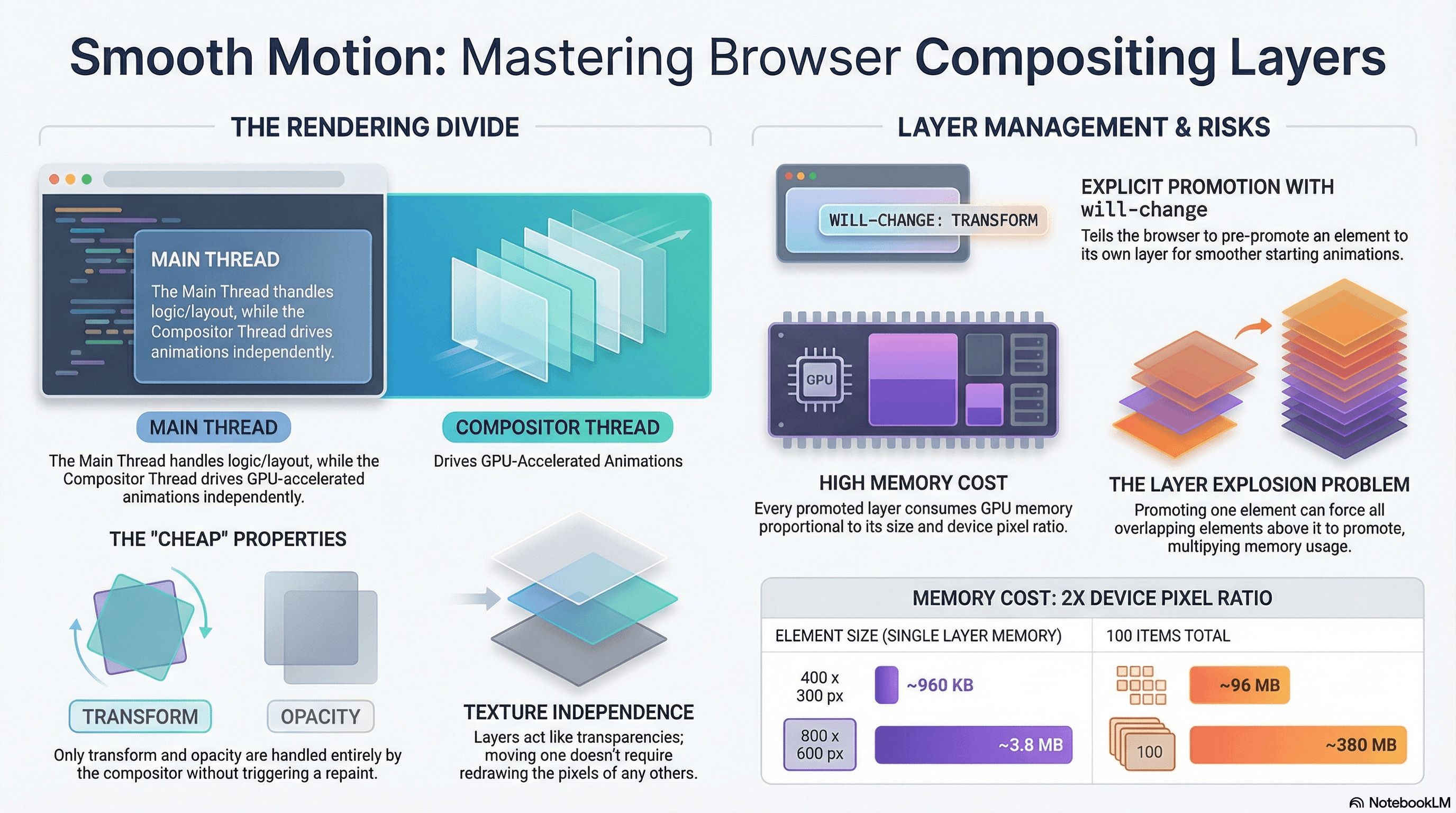
When the browser paints a page, it doesn't always draw everything onto one flat surface. It splits parts of the page into independent compositing layers — separate GPU textures that can be moved, faded, and transformed without touching the pixels inside them.
This is what makes transform and opacity animations so cheap: the GPU repositions or blends pre-painted textures rather than re-running layout and paint on every frame. The compositor thread handles this work entirely independently of the main JavaScript thread — which is why these animations stay smooth even when the main thread is busy.
This article goes deeper on compositing than the previous Paint vs Layout vs Composite article. Here we cover exactly what triggers layer promotion, how the compositor thread works independently of the main thread, how to use will-change precisely, and how to inspect and debug layers in DevTools.
How It Works
The Compositor Thread
Modern browsers have two threads relevant to rendering:
- Main thread — runs JavaScript, style calculation, layout, and paint
- Compositor thread — runs compositing, handles scroll, and drives GPU-accelerated animations
When an animation only involves compositor-friendly properties (transform, opacity), the compositor thread can update the screen every frame without involving the main thread at all. This is why these animations survive even when JavaScript is executing a long task — they're on a completely separate track.
Main thread:   [JS runs] [Layout] [Paint] ← touches these
Compositor:    [Composite] [Update GPU layers] ← independent
GPU:           [Render frame to screen]
For any property that triggers layout or paint, the compositor must wait for the main thread to finish those phases before it can composite the result — breaking the independence and potentially causing jank.
What Is a Compositing Layer
Every element lives on a layer. By default, most elements share the root layer — one big texture for the entire page. When an element is promoted to its own layer, the browser gives it a dedicated GPU texture. The compositor can then reposition, scale, rotate, or fade that texture independently without touching any other layer.
The analogy: think of layers like physical transparencies stacked on an overhead projector. Moving one transparency doesn't require redrawing any of the others.
What Triggers Layer Promotion
The browser promotes elements automatically under certain conditions, and you can also trigger promotion explicitly:
Automatic promotion:
- Active CSS
transformoropacityanimation/transition currently running position: fixedelements (in most browsers)<video>,<canvas>,<iframe>elements- Elements with
overflow: scrollin some cases - Elements that are children of a composited layer where correct stacking requires separate layers (implicit promotion — more on this below)
Explicit promotion:
will-change: transformorwill-change: opacitytransform: translateZ(0)ortransform: translate3d(0,0,0)— old hack that still works, butwill-changeis the correct modern approach
The Layer Explosion Problem — Implicit Promotion
This is the dangerous one. When you promote an element that sits beneath other elements in the stacking order, the browser may need to promote all elements above it onto their own layers too — to ensure correct rendering order. This is called layer squashing and layer explosion.
Promote element A (z-index: 1)
  ↓
Browser must separate elements B, C, D that overlap A (z-index: 2, 3, 4)
  ↓
3 extra layers created implicitly — GPU memory spikes
This is why blindly adding will-change: transform to elements in a list can create dozens of unexpected layers and actually hurt performance.
Layer Memory Cost
Each layer requires the GPU to maintain a full texture for its painted content. A 400×300 element at 2x device pixel ratio needs ~960KB of GPU memory (400 × 300 × 4 bytes × 4 pixels). Promote 100 list items and you've used ~96MB of GPU memory just for that feature — which on mobile causes the GPU to swap memory, introducing the exact jank you were trying to prevent.
Code Examples
CSS — Correct vs Incorrect Layer Promotion
/* ❌ Promotes every card — memory explosion on long lists */
.product-card {
  will-change: transform;
}

/* ✅ Only promote the card the user is hovering — one layer at a time */
.product-card:hover {
  will-change: transform;
}

/* ✅ Even better: use will-change only when animation is imminent,
   remove it immediately after — managed via JS for infrequent animations */
/* ❌ Animating left triggers layout on every frame — layer promotion is useless */
.sidebar {
position: fixed;
left: -300px;
transition: left 300ms ease;
will-change: left; /* will-change on a layout property does nothing useful */
}
.sidebar.open {
left: 0;
}
/* ✅ Animate transform — compositor handles it independently of main thread */
.sidebar {
position: fixed;
transform: translateX(-300px);
transition: transform 300ms ease;
will-change: transform; /* now will-change is meaningful */
}
.sidebar.open {
transform: translateX(0);
}JavaScript — Dynamic will-change Management
For infrequent animations (triggered by user action), apply will-change just before the animation starts and remove it when it ends:
// lib/animate-sidebar.ts

export function openSidebar(sidebar: HTMLElement): void {
  // Step 1: promote the element BEFORE the animation starts
  // This gives the browser time to create the GPU layer
  // before the first animated frame
  sidebar.style.willChange = "transform";

  // Step 2: trigger animation on next frame to ensure promotion
  // happens before the transition begins
  requestAnimationFrame(() => {
    sidebar.classList.add("sidebar--open");

    // Step 3: remove will-change after animation completes
    // Keeping it active permanently wastes GPU memory
    sidebar.addEventListener(
      "transitionend",
      () => {
        sidebar.style.willChange = "auto";
      },
      { once: true }, // auto-removes the listener after first fire
    );
  });
}
React — Layer-Aware Animation Component
// components/AnimatedPanel.tsx
"use client";

import { useRef, useEffect, useState } from "react";

interface AnimatedPanelProps {
  isOpen: boolean;
  children: React.ReactNode;
}

export function AnimatedPanel({ isOpen, children }: AnimatedPanelProps) {
  const panelRef = useRef<HTMLDivElement>(null);
  const [isAnimating, setIsAnimating] = useState(false);

  useEffect(() => {
    const panel = panelRef.current;
    if (!panel) return;

    // Promote layer just before state change triggers animation
    panel.style.willChange = "transform, opacity";
    setIsAnimating(true);

    const handleTransitionEnd = () => {
      // Release GPU memory after animation completes
      panel.style.willChange = "auto";
      setIsAnimating(false);
    };

    panel.addEventListener("transitionend", handleTransitionEnd, {
      once: true,
    });

    return () => {
      panel.removeEventListener("transitionend", handleTransitionEnd);
    };
  }, [isOpen]);

  return (
    <div
      ref={panelRef}
      style={{
        transform: isOpen ? "translateX(0)" : "translateX(-100%)",
        opacity: isOpen ? 1 : 0,
        // Only composite-triggering properties — no layout cost during animation
        transition: "transform 300ms ease, opacity 300ms ease",
      }}
    >
      {children}
    </div>
  );
}
Fixing the box-shadow Animation Problem
box-shadow triggers paint on every frame. The standard workaround is to animate the opacity of a pseudo-element that holds the shadow — keeping the actual animation on the compositor:
/* ❌ box-shadow transition triggers paint on every frame */
.card {
  box-shadow: 0 2px 4px rgba(0, 0, 0, 0.1);
  transition: box-shadow 200ms ease;
}
.card:hover {
  box-shadow: 0 8px 24px rgba(0, 0, 0, 0.2); /* paint on every frame */
}

/* ✅ Fade in a pre-painted shadow — composite only */
.card {
  position: relative;
}
.card::after {
  content: "";
  position: absolute;
  inset: 0;
  border-radius: inherit;
  box-shadow: 0 8px 24px rgba(0, 0, 0, 0.2);
  opacity: 0;
  transition: opacity 200ms ease; /* opacity = composite only */
}
.card:hover::after {
  opacity: 1;
}
Inspecting Compositing Layers in DevTools
# Chrome DevTools — Layer inspection methods:

# Method 1: Layers panel
# DevTools → More tools → Layers
# Shows a 3D visualization of all compositor layers, memory usage per layer,
# and the reason each layer was promoted.

# Method 2: Layer borders overlay
# DevTools → Rendering tab → enable "Layer borders"
# Orange borders = tiles, Teal/Cyan borders = compositor layers

# Method 3: Performance recording
# DevTools → Performance → Record
# Look for "Composite Layers" entries in the flame chart.
# Their duration tells you how expensive compositing is per frame.

# Method 4: Paint flashing
# DevTools → Rendering tab → enable "Paint flashing"
# Green flashes on elements that are repainting.
# If a supposedly-composited element flashes green, its pixels are changing
# and it's repainting before compositing — you're not getting the benefit.
Identifying Layer Explosion
// Use the PerformanceObserver to detect expensive composite operations
// that might indicate layer explosion
const observer = new PerformanceObserver((list) => {
  for (const entry of list.getEntries()) {
    // "composite" entries show up in detailed performance traces
    if (entry.duration > 4) {
      // > 4ms composite is a warning sign — may have too many layers
      console.warn(
        `Slow composite: ${entry.duration.toFixed(1)}ms — check layer count`,
      );
    }
  }
});

// Monitor long animation frames (LoAF API — Chrome 116+)
const loafObserver = new PerformanceObserver((list) => {
  for (const entry of list.getEntries()) {
    console.warn(`Long animation frame: ${entry.duration.toFixed(1)}ms`, entry);
  }
});

loafObserver.observe({ type: "long-animation-frame", buffered: true });
Real-World Use Case
Collapsible dashboard sidebar. A sidebar slides in from the left when opened. The naive implementation transitions left from -300px to 0 — triggering layout on every animation frame. On a dashboard with many charts rendering simultaneously, this causes visible jank because the layout recalculation contends with the chart rendering work.
The fix: switch to transform: translateX(-300px) → translateX(0) with will-change: transform applied just before the user triggers the open action (on mousedown or button focus). The sidebar now slides in at 60fps on the compositor thread, completely independent of whatever the main thread is doing.
Sticky table headers. A data table has a sticky header row that must stay visible during vertical scroll. Without layer promotion, the browser repaints the header on every scroll event. With will-change: transform (or just position: sticky, which triggers promotion in modern browsers), the header composites independently and scroll becomes buttery smooth — no repaint needed.
Common Mistakes / Gotchas
1. Applying will-change to every element as a blanket optimization.
Each promoted layer consumes GPU memory proportional to its painted area at device pixel ratio. Promoting 50 list items on a mobile device can exhaust available GPU memory and cause the GPU to start swapping — making performance worse than no promotion at all. Only promote elements you've profiled as causing jank.
2. Using will-change on layout-triggering properties.
will-change: width or will-change: top doesn't help — the browser still has to run layout when those properties change. will-change only provides a compositing benefit for transform and opacity.
3. Never removing will-change after use.
will-change on a static element that isn't currently animating is pure waste — it occupies a GPU layer with no benefit. For infrequent animations, apply it in JavaScript before the animation starts and remove it in the transitionend handler.
4. Triggering implicit layer promotion without realizing it.
Promoting one element can force the browser to promote every overlapping element above it in the stacking order — to preserve correct paint order. Use the Layers panel in DevTools to count your actual layer count before and after adding will-change. If the number jumps by more than 1, you have implicit promotion.
5. Assuming composited elements never repaint. A layer is composited but still repaints if its pixel content changes — text updates, background color changes, child DOM mutations. Layer promotion only eliminates paint for geometric changes (transform, opacity). Enable "Paint flashing" in DevTools to verify that your supposedly-composited element isn't flashing green on every frame.
6. Using transform: translateZ(0) as the promotion trigger.
This old hack still works but will-change: transform is the correct modern approach. translateZ(0) can create unexpected 3D stacking contexts and cause transform-style: preserve-3d and backface-visibility issues in complex layouts.
Summary
Compositor layers give the browser's GPU the ability to move, fade, and transform pre-painted surfaces without re-running layout or paint. The compositor thread operates independently of the main JavaScript thread, which is why transform and opacity animations stay smooth even during heavy JS work. Layer promotion is triggered automatically by active animations and certain element types, and explicitly by will-change. The cost of promotion is GPU memory — one full texture per layer — so over-promotion causes memory pressure and defeats the purpose. Implicit promotion (where promoting one element forces others to promote too) is the most common hidden cost. Always verify your layer count with DevTools' Layers panel, confirm there's no unexpected paint with Paint flashing, and manage will-change dynamically — apply before animation, remove after.
Interview Questions
Q1. What is a compositing layer and why does the browser use them?
A compositing layer is a separate GPU texture that the browser maintains for a subset of the page's content. Instead of painting everything onto one flat surface, the browser splits independently-moving parts of the page into separate layers. The GPU can then reposition, scale, rotate, or fade individual layers without touching the pixels in any other layer — and without re-running layout or paint. This is what makes transform and opacity animations cheap: the compositor thread handles them on the GPU, completely independently of the main JavaScript thread.
Q2. Why do transform and opacity animate more cheaply than other CSS properties?
transform and opacity are the only two CSS properties that can be fully handled by the compositor thread without involving the main thread. Changing transform moves a pre-painted GPU texture — no layout recalculation, no pixel repaint. Changing opacity blends GPU textures at different alpha values — same story. Every other property requires either a layout recalculation (geometry properties like width, top) or a repaint (visual properties like background-color, box-shadow) before the compositor can produce a frame. Those phases run on the main thread, so they can be blocked by JavaScript and cause jank.
Q3. What does will-change do and what are the risks of overusing it?
will-change is a hint to the browser that a specific property is about to change on an element. The browser responds by promoting the element to its own compositor layer in advance — so the first animated frame doesn't include the overhead of layer creation. The risk: each promoted layer requires the GPU to maintain a full texture proportional to the element's painted area at device pixel ratio. Promoting many elements wastes GPU memory. On mobile devices with limited GPU memory, over-promotion causes the GPU to swap memory to RAM, which is slower than just painting on the CPU. Only apply will-change to elements you've confirmed are causing jank, and remove it after the animation completes.
Q4. What is implicit layer promotion and why is it dangerous?
When you promote an element that has overlapping elements above it in the z-order, the browser must separate those overlapping elements onto their own layers too — to preserve correct paint order when compositing. This means promoting one element can trigger a cascade of unintended promotions. In a list where you promote one item, all items above it in the stacking context may be implicitly promoted, multiplying your layer count and GPU memory usage unexpectedly. The Layers panel in DevTools shows the reason for each promotion — "Overlapping composited layer" is the signal that implicit promotion has occurred.
Q5. How would you animate a box shadow without triggering paint on every frame?
Animating box-shadow directly triggers paint on every frame because the shadow pixels must be redrawn as the shadow changes. The workaround is to pre-paint the final shadow state into a pseudo-element (::after) and animate its opacity instead. Since opacity is compositor-only, fading the pseudo-element in and out is free. The base element has no shadow; the pseudo-element has the full shadow at full opacity; hovering fades in the pseudo-element to opacity: 1. The visual result is identical to animating box-shadow directly, but the animation runs entirely on the compositor with no repaint.
Q6. How do you diagnose excessive layer promotion in a production app?
Open Chrome DevTools → More tools → Layers panel. This shows every compositor layer, its memory usage, painted area, and the reason it was promoted. High layer counts (more than 10–20 for a typical page) warrant investigation. Enable "Paint flashing" in the Rendering panel to verify that composited elements aren't repainting on every frame — green flashes indicate unexpected repaints. For scroll-specific issues, record a Performance trace during scroll and look for expensive "Composite Layers" entries in the flame chart. Finally, cross-check the layer count before and after any will-change or animation changes to catch implicit promotions.
Paint vs Layout vs Composite
The three browser rendering phases in depth — what triggers each, why layout is the most expensive, how to push work to the cheap composite phase, and how to avoid layout thrashing.
Hydration
How React attaches to server-rendered HTML, what hydration mismatches are and why they happen, the CPU cost of hydration, and how to structure components to minimize it.