Render-Blocking Resources
What makes a resource render-blocking, how async and defer change script execution, how to defer non-critical CSS, and how to measure and eliminate blocking resources in production.
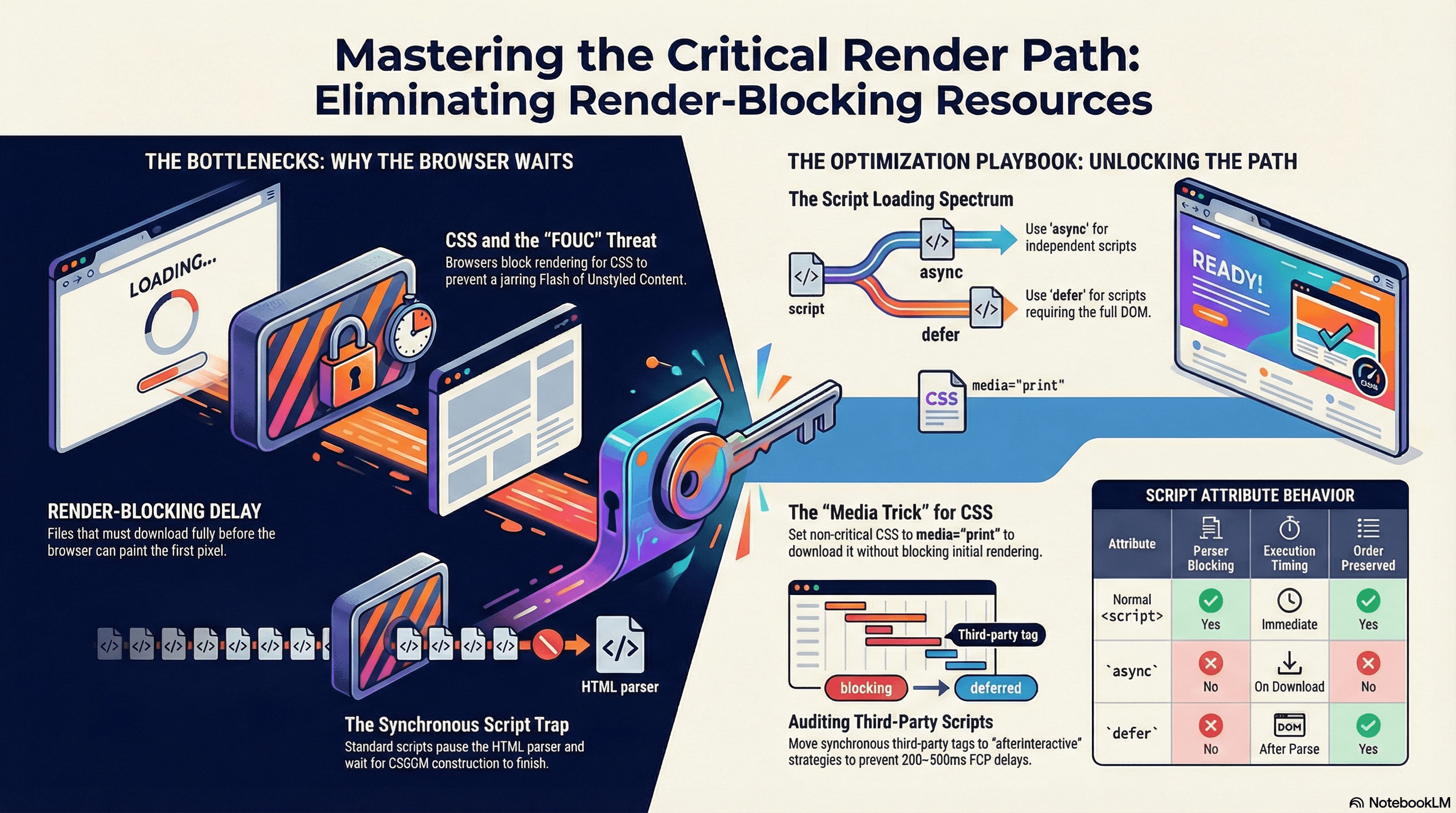
Overview
A render-blocking resource is any file the browser must fully download and process before it can produce the render tree and paint the first pixel. Every render-blocking resource directly delays First Contentful Paint — the moment users first see anything on screen.
The previous article established why the browser blocks: it can't build the render tree without a complete CSSOM, and it can't safely execute scripts without a complete CSSOM either. This article focuses on the practical side — how to identify which resources are blocking, what your actual options are for each resource type, and the tradeoffs of each approach.
How It Works
Why CSS Is Always Blocking
The browser can't construct the render tree without computed styles. Painting unstyled content first would produce a Flash of Unstyled Content (FOUC) — a jarring visual jump that's worse than a slight delay. So the browser waits.
Every <link rel="stylesheet"> in the document is blocking by default. This includes:
- Your own stylesheets
- CSS imported by those stylesheets via
@import - Third-party CSS (fonts, UI libraries, analytics widgets)
@import inside CSS is particularly costly — the browser only discovers the imported file after downloading and parsing the parent stylesheet, creating a sequential chain of blocking downloads.
Why JavaScript Is Blocking by Default
A classic <script> tag without attributes does three things that hurt the CRP:
- Pauses the HTML parser — the browser stops building the DOM the moment it hits the tag
- Waits for pending CSS — because JS can call
getComputedStyle(), the engine must ensure the CSSOM is complete before executing - Executes synchronously — the script runs in full before the parser resumes
The result: a single synchronous <script> in <head> can block both CSSOM construction and DOM construction simultaneously.
The Script Loading Spectrum
There are four ways to load a script, each with different blocking behavior:
                    Downloads      Executes when              Preserves
                    in parallel?   parser finishes?           order?

Classic <script>    ❌ No          N/A (blocks immediately)   N/A
async               ✅ Yes         ❌ No (runs on download)    ❌ No
defer               ✅ Yes         ✅ Yes                      ✅ Yes
type="module"       ✅ Yes         ✅ Yes (implicit defer)     ✅ Yes
type="module" behaves like defer by default — non-blocking and executes after parse. It also supports async as an explicit attribute for module scripts that should execute as soon as downloaded.
Third-Party Scripts — The Hidden Threat
First-party scripts are visible in your codebase and easy to audit. Third-party scripts — analytics, A/B testing, chat widgets, tag managers — are often added to <head> by non-engineers via tag management systems and are frequently synchronous.
A single synchronous third-party script in <head> can block FCP by its full download and execution time — often 200–500ms on mobile — and can chain-block if it loads additional synchronous dependencies. This is one of the most common sources of unexpected FCP regressions in production.
Code Examples
Identifying Render-Blocking Resources Programmatically
// Surfaces all render-blocking resources using the Resource Timing API.
// Embed this in a RUM snippet or run it in the browser console.
function auditRenderBlockingResources(): void {
  const resources = performance.getEntriesByType(
    "resource",
  ) as PerformanceResourceTiming[];

  const blocking = resources.filter(
    (r) => (r as any).renderBlockingStatus === "blocking",
  );

  if (blocking.length === 0) {
    console.log("✅ No render-blocking resources detected");
    return;
  }

  console.group(`🚫 ${blocking.length} render-blocking resource(s) found`);
  blocking.forEach((r) => {
    const sizeKb = ((r as any).encodedBodySize / 1024).toFixed(1);
    console.log(
      `${r.initiatorType.toUpperCase()} | ${r.duration.toFixed(0)}ms | ${sizeKb}kb | ${r.name}`,
    );
  });
  console.groupEnd();
}

window.addEventListener("load", auditRenderBlockingResources);
The Full Script Loading Reference
<!DOCTYPE html>
<html lang="en">
  <head>
    <meta charset="UTF-8" />

    <!-- ❌ Blocks parser AND rendering — never do this for non-critical scripts -->
    <script src="/scripts/blocking-example.js"></script>

    <!-- ✅ async — parallel download, executes as soon as ready.
         Use for: analytics, A/B testing, independent tracking pixels.
         Do NOT use for scripts that depend on the DOM or other scripts. -->
    <script async src="/scripts/analytics.js"></script>

    <!-- ✅ defer — parallel download, executes after full HTML parse.
         Preserves execution order between deferred scripts.
         Use for: your app bundle, anything that needs a complete DOM. -->
    <script defer src="/scripts/app.js"></script>
    <script defer src="/scripts/components.js"></script>
    <!-- components.js is guaranteed to execute after app.js -->

    <!-- ✅ type="module" — implicit defer behavior, supports ES module syntax.
         Add async attribute to override defer behavior if needed. -->
    <script type="module" src="/scripts/module-app.js"></script>
  </head>
  <body>
    <!-- Scripts at the end of <body> also avoid blocking parsing,
         but defer is generally preferred — it starts downloading earlier
         since the browser discovers the tag sooner in the document. -->
  </body>
</html>
Deferring Non-Critical CSS — The media Trick
The browser only blocks rendering for stylesheets it considers relevant to the current media type. Setting media="print" marks a stylesheet as print-only — the browser downloads it at low priority without blocking the initial render.
<!-- ✅ Low-priority download, does not block initial render -->
<link
  rel="stylesheet"
  href="/styles/below-fold.css"
  media="print"
  onload="this.media='all'"
/>

<Img
  src="https://frontcore.t3.storage.dev/Images/frontend/rendering-and-browser-pipeline/render-blocking-resources.png"
  alt="Render-Blocking Resources overview"
/>
<noscript>
  <!-- Fallback for JavaScript-disabled environments -->
  <link rel="stylesheet" href="/styles/below-fold.css" />
</noscript>
When the stylesheet finishes downloading, onload switches media back to "all", applying the styles. The <noscript> fallback ensures styles are applied when JavaScript is disabled.
Only defer CSS that genuinely isn't needed for the above-the-fold viewport. If the deferred stylesheet styles visible content, users will see a brief flash as styles apply after load — trading a blocking delay for a visible layout shift, which is arguably worse.
Eliminating @import Chains
@import creates sequential dependency chains — the browser can't discover the imported file until the parent stylesheet is downloaded and parsed. Each @import adds a full network round-trip to the critical path.
/* ❌ Sequential — browser finds typography.css only after parsing main.css,
   then finds components.css only after parsing typography.css */

/* main.css */
@import url("/styles/typography.css");

/* typography.css */
@import url("/styles/components.css");
<!-- ✅ Parallel — browser discovers all three at the same time from HTML -->
<link rel="stylesheet" href="/styles/main.css" />
<link rel="stylesheet" href="/styles/typography.css" />
<link rel="stylesheet" href="/styles/components.css" />For bundled projects (Next.js, Vite, webpack), the bundler collapses @import chains into a single output file automatically — so this is mainly a concern for unbundled stylesheets or third-party CSS that uses @import internally.
Auditing Third-Party Scripts in Next.js
The Next.js <Script> component enforces correct loading strategies and prevents accidental render-blocking from copy-pasted vendor snippets:
// app/layout.tsx
import Script from "next/script";

export default function RootLayout({
  children,
}: {
  children: React.ReactNode;
}) {
  return (
    <html lang="en">
      <body>
        {children}

        {/*
          "afterInteractive" — loads after page becomes interactive.
          Equivalent to defer. Use for: analytics, tag managers, heatmaps.
        */}
        <Script
          src="https://www.googletagmanager.com/gtag/js?id=GA_MEASUREMENT_ID"
          strategy="afterInteractive"
        />

        {/*
          "lazyOnload" — loads during browser idle time.
          Use for: chat widgets, non-critical embeds, low-priority widgets.
        */}
        <Script
          src="https://cdn.support-chat.example.com/widget.js"
          strategy="lazyOnload"
        />

        {/*
          "beforeInteractive" — executes before page hydration.
          Use sparingly: consent managers, critical polyfills only.
          This intentionally blocks hydration — appropriate for consent flows.
        */}
        <Script
          src="/scripts/consent-manager.js"
          strategy="beforeInteractive"
        />
      </body>
    </html>
  );
}
strategy="afterInteractive" and "lazyOnload" automatically move the script out of <head> and inject it after hydration — preventing engineers from accidentally creating render-blocking resources via copy-pasted vendor setup instructions, which almost always say "add this to <head>."
Preloading Late-Discovered Critical Resources
rel="preload" tells the browser to fetch a resource at high priority early — before it would normally be discovered during parsing.
<head>
  <!-- Preload a font referenced inside a CSS file.
       Without this, the browser discovers the font only after
       downloading and parsing the stylesheet — a late discovery
       that delays text rendering and hurts LCP. -->
  <link
    rel="preload"
    href="/fonts/inter-var.woff2"
    as="font"
    type="font/woff2"
    crossorigin
  />

  <!-- Preload the hero image if it's set via CSS background-image.
       <img> tags are discovered during HTML parse — background-image
       is not discovered until CSS is parsed, which is too late for LCP. -->
  <link rel="preload" href="/images/hero.webp" as="image" type="image/webp" />

  <link rel="stylesheet" href="/styles/main.css" />
</head>
Only preload resources genuinely needed for the first paint. Every
rel="preload" competes for bandwidth with the HTML document, critical CSS,
and initial data requests. Preloading a font used only in the footer actively
hurts FCP by starving actually critical resources.
Real-World Use Case
A marketing team adds a heatmap tracking tool via a raw <script> tag in <head> — standard vendor setup instructions. The script is synchronous and hosted on the vendor's CDN. On slow days the vendor CDN takes 600ms, and that 600ms appears directly in site FCP for every user, regardless of how fast the actual site assets are.
The fix: replace the raw <script> with Next.js <Script strategy="afterInteractive">. The heatmap tool loads after the page is interactive, has zero impact on FCP, and still captures the same interaction data — because heatmap tools don't need to load before the user can see the page, only before they interact with it.
This is the exact shape of most render-blocking issues in production: not your own code, but third-party tags added outside the engineering review process via a tag manager.
Common Mistakes / Gotchas
1. Using async for scripts that depend on each other.
async scripts execute in download-completion order, not document order. If app.js depends on vendor.js but vendor.js happens to take slightly longer to download, app.js executes first and throws a reference error. Use defer for any scripts with execution order dependencies.
2. Using @import in production CSS.
Each @import creates a sequential discovery chain adding a full round-trip per nesting level. Replace with multiple parallel <link> tags in HTML or let your bundler merge them into a single file.
3. Assuming defer solves the full blocking problem.
defer prevents the script from blocking HTML parsing, but if a large stylesheet appears before the deferred script in the HTML, the browser still waits for that stylesheet before executing the script (because the script might call getComputedStyle). defer solves the script half of the problem, not the CSS half.
4. Forgetting crossorigin on preloaded fonts.
Font requests use CORS. Without crossorigin on the preload hint, the browser makes two separate font requests — one from the preload (no CORS headers) and one from the CSS reference (with CORS headers). They don't share a cache entry. The preload is completely wasted and you've added a redundant request.
5. Preloading every image on the page. Preloading is appropriate only for the LCP candidate — typically one hero image. Preloading every image sends conflicting high-priority signals and causes bandwidth contention that worsens overall load performance. Preload one; let the browser prioritize the rest.
6. Not testing with third-party scripts included.
Your own assets may be perfectly optimized, but if an unaudited third-party script in <head> times out, it blocks your entire render. Always run CRP audits with all production scripts active, and use DevTools' "Block request URL" feature to simulate third-party failures and measure their impact on FCP.
Summary
Render-blocking resources are files the browser must fully process before it can construct the render tree and paint. CSS is always blocking by design — the CSSOM must be complete before layout begins. JavaScript is parser-blocking and render-blocking by default; async downloads in parallel and executes on completion without preserving order, while defer downloads in parallel and executes after full HTML parse in document order. Non-critical CSS can be deferred using the media="print" trick. @import chains create sequential discovery delays that should be replaced with parallel <link> tags or bundler consolidation. Third-party scripts in <head> without async or defer are the most common source of unexpected FCP regressions in production — in Next.js, the <Script> component with explicit strategy values prevents this class of mistake.
Interview Questions
Q1. What is a render-blocking resource, and why does the browser block for it?
A render-blocking resource is one the browser must fully download and process before it can construct the render tree and paint. The browser blocks for CSS because computed styles — required for the render tree — can't be resolved without a complete CSSOM. It blocks for synchronous scripts because JavaScript can query computed styles via getComputedStyle, so the CSSOM must be ready before any script executes. This behavior is intentional — it prevents flashes of unstyled content and incorrect script execution — not a browser bug.
Q2. What is the difference between async and defer?
Both attributes make the script download in parallel with HTML parsing rather than blocking the parser. The difference is when the script executes. async executes as soon as the download finishes — potentially mid-parse — and does not preserve execution order between multiple async scripts. defer waits until HTML parsing is complete before executing, and preserves document order between deferred scripts. Use async for fully independent scripts like analytics. Use defer for application code that needs a complete DOM or that depends on other scripts.
Q3. Why does @import hurt render performance?
@import creates sequential resource discovery. The browser can't fetch an imported stylesheet until it has downloaded and parsed the file that imports it, adding a full network round-trip per nesting level. Multiple <link rel="stylesheet"> tags in HTML are discovered simultaneously and fetched in parallel. The fix is to replace @import chains with parallel <link> tags, or let a bundler consolidate all CSS into a single file — eliminating the discovery chain entirely.
Q4. How does the media="print" trick defer non-critical CSS?
The browser only blocks rendering for stylesheets relevant to the current context. Setting media="print" tells the browser the stylesheet is only relevant for printing — so it downloads it at low priority without blocking the initial render. The onload event fires when the download completes, at which point you switch media back to "all" to apply the styles. A <noscript> fallback with a regular link tag ensures styles still apply in no-JS environments.
Q5. Why must you include crossorigin on rel="preload" for fonts?
Font requests use CORS. A preload without crossorigin fetches the font without CORS headers. When the CSS reference to the same font is processed, it fetches it with CORS headers. These two requests have different cache keys and don't share a response — so the browser makes two separate font requests and the preload is entirely wasted. Always include crossorigin on font preloads to ensure the preloaded response is reused when the CSS reference is processed.
Q6. In production, good Lighthouse scores don't match slow real-user FCP. What would you check first?
Third-party scripts. Lighthouse runs in a controlled lab environment that often excludes tag manager payloads, A/B testing libraries, and consent managers — all of which may be synchronous in <head> in production. I'd embed a PerformanceResourceTiming audit in a RUM snippet to surface resources with renderBlockingStatus === "blocking" in real user sessions, then cross-reference with the list of scripts injected by the tag manager. Each offending script gets either async, defer, or a migration to Next.js <Script> with an appropriate strategy. I'd also simulate third-party failures using "Block request URL" in DevTools to understand worst-case impact.
Critical Rendering Path
How browsers parse HTML, CSS, and JavaScript to produce the first frame — what blocks it, what the key metrics are, and how to optimize it.
Paint vs Layout vs Composite
The three browser rendering phases in depth — what triggers each, why layout is the most expensive, how to push work to the cheap composite phase, and how to avoid layout thrashing.